

You built or bought a gaming PC for smooth, competitive performance—so why are you still dealing with stutters, frame drops, and inconsistent FPS? If you’re trying to optimize gaming pc for fps, this guide delivers a clear, no-cost action plan to unlock the performance you’re already capable of achieving. We go beyond surface-level tips and explain exactly why each adjustment works, from critical driver updates to fine-tuning GPU control panel settings. By the end, you’ll have a practical, step-by-step checklist designed to increase frame rates, stabilize performance, and give you a sharper edge in every match.
The Foundation: Essential Driver and OS Updates
Your GPU’s lifeline isn’t flashy RGB lighting—it’s your graphics driver. Drivers are the bridge between your game and your hardware. Game-ready releases from NVIDIA and AMD often include targeted optimizations for brand-new titles, sometimes boosting performance by measurable margins (NVIDIA frequently notes 5–15% gains in patch notes). That’s free FPS.
How to update:
- NVIDIA: Open GeForce Experience → Drivers → Download → Choose Clean Installation.
- AMD: Open Radeon Software → Check for Updates → Install → Select Factory Reset (clean install equivalent).
A clean install removes leftover files that can cause crashes or stutters (yes, even tiny conflicts matter).
Don’t forget Windows. Updates improve DirectX components and the OS scheduler—both directly tied to frame pacing and stability (Microsoft documentation confirms scheduler improvements in Windows 10/11 updates).
Some argue updates risk new bugs. Fair—but staying outdated often means missing stability patches and esports-level optimizations.
If you want to optimize gaming pc for fps, this is step one. In competitive matches, a 3% boost can mean the difference between clutching—or spectating.
In-Game Settings: The Biggest FPS Gains for Zero Cost
If you want more frames per second (FPS)—how many images your PC renders each second—you don’t always need new hardware. You just need smarter settings.
Resolution vs. Performance
Resolution is the number of pixels on your screen. Going from 1440p to 1080p reduces the pixel count by nearly 44%, which can dramatically boost FPS (TechPowerUp GPU scaling benchmarks). Fewer pixels = less work for your GPU.
If 1080p looks too soft, try render scaling. This setting lets the game render at, say, 90% of native resolution while keeping your monitor at full size. It’s a granular way to optimize gaming pc for fps without a massive visual downgrade.
The Shadow Tax
Shadows are performance-heavy because they’re constantly recalculated based on lighting and movement. Dropping shadows from Ultra to High or Medium often delivers noticeable FPS gains with minimal visual loss (and you’ll barely notice mid-fight).
Anti-Aliasing Explained
Anti-aliasing (AA) smooths jagged edges on objects. High-end options like MSAA are GPU-intensive. Lighter methods like FXAA or SMAA smooth edges at a fraction of the cost. Competitive players often prefer clarity over perfect smoothness.
Textures and View Distance
- Texture Quality mainly affects VRAM (video memory). If you have 8GB+ VRAM, High is usually safe.
- View/Draw Distance impacts CPU load since more objects must be processed.
Balance based on your weakest component.
Competitive Settings Profile
Most esports pros run:
- Low shadows, effects, post-processing
- High model detail
- Moderate textures
The goal? Maximum visibility and stable FPS—because smooth gameplay wins fights.
Windows Optimization: Taming Background Processes for Smoother Gameplay
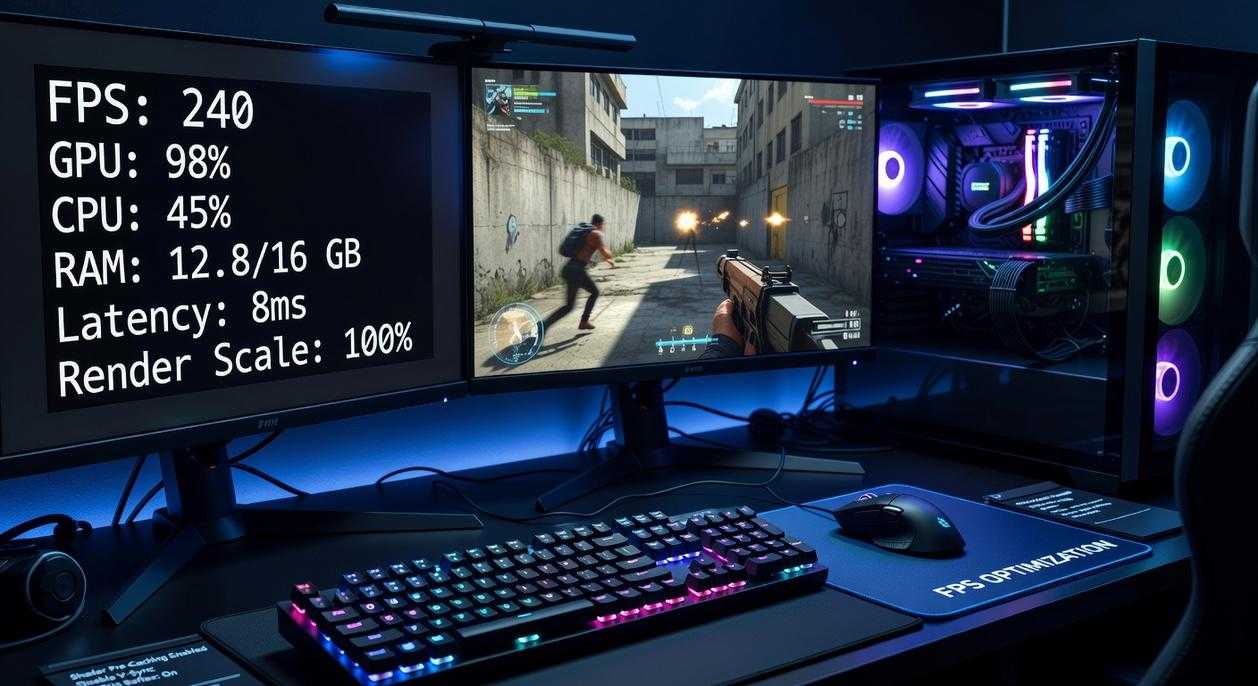
Most players assume low FPS is always a hardware problem. It’s not. More often than people admit, Windows itself is hogging resources in the background (yes, even on that “beast” PC).
First, activate Windows Game Mode. Game Mode is a built-in Windows feature that prioritizes CPU and GPU resources for your active game while limiting background services like Windows Update. Some argue it barely helps. However, in CPU-bound titles like large-scale battle royales, preventing background spikes can stabilize frame times noticeably.
Next, disable startup bloat. Open Task Manager → Startup tab and turn off non-essential apps. Common culprits include Discord, Spotify, and random update checkers. Just because you use them doesn’t mean they need to launch at boot. Fewer startup processes mean more RAM and CPU headroom.
Then switch to the High Performance (or Ultimate Performance) power plan. This keeps components at higher clock speeds instead of downscaling aggressively. Critics say Balanced is “good enough.” For casual browsing, sure. For competitive play? Not quite.
Also, turn off unnecessary overlays. Discord, NVIDIA, and Xbox Game Bar overlays can conflict and consume resources. Keep only what you truly need.
If you’re serious about every frame, these tweaks help optimize gaming pc for fps—especially when paired with the best display settings for competitive gaming performance.
GPU Control Panel: Fine-Tuning for Maximum Performance
First, open your control panel. On NVIDIA GPUs, right-click your desktop and select NVIDIA Control Panel. For AMD users, right-click and launch AMD Radeon Software. Within seconds, you’re staring at a dashboard that looks technical—but feels powerful, like stepping into a cockpit before takeoff.
In NVIDIA’s Manage 3D Settings tab, switch Power management mode to Prefer maximum performance. This keeps your GPU running at full throttle instead of idling quietly in the background. Next, set Texture filtering – Quality to High performance; you may lose subtle visual polish, but gameplay feels snappier. Finally, turn Low Latency Mode to On or Ultra for competitive shooters—the difference can feel like shaving milliseconds off a trigger pull.
Meanwhile, AMD users should enable Radeon Anti-Lag to tighten input response and Radeon Boost to dynamically lower resolution during fast motion, smoothing frantic firefights. Create a global esports profile focused purely on performance.
Some argue modern games manage this automatically. Fair—but overriding defaults ensures consistent output. When you optimize gaming pc for fps this way, fans spin louder, frames render faster, and every click feels razor-sharp.
From Stuttering to Silky-Smooth: Your High-FPS Gameplay Awaits
You came here to fix low FPS—and now you have the blueprint. By updating drivers, dialing in-game settings, optimizing Windows, and fine-tuning your GPU control panel, you can optimize gaming pc for fps without spending a dime.
No more tolerating stutter, input lag, or random frame drops. You now know how to pinpoint performance bottlenecks and unlock the hidden power of your current hardware for smoother, more responsive gameplay.
Don’t let poor performance hold you back another match. Apply these tweaks one by one, watch your frame rate counter climb, and feel the difference instantly. For more proven, player-tested optimization tips trusted by thousands of competitive gamers, keep exploring and level up your setup today.
 Lynnesa Rosselinda is a creative force in the gaming content space, known for her ability to translate complex gameplay mechanics into engaging, easy-to-follow insights. With a passion for storytelling and player-focused experiences, she contributes thoughtful perspectives on emerging trends, player strategies, and the evolving culture of competitive gaming.